 Adria Studio
Adria StudioGuide
Adria Studio · Markdown to image guide Turn a Markdown note into a set of images
Paste your Markdown into Adria Studio and pick a theme you like. Studio splits it into pages, carries long tables over to the next page and exports each page as a 1080 × 1440 PNG. Below, we make an autumn reading list from start to finish so you can follow along.
Write your note
Studio understands everyday Markdown, so there is nothing new to learn. A few small habits make the pages look better:
- Start with a few
#headings in a row and they become the title on the cover, one line each. - Use
##for headings inside the post. Lists, quotes and tables work the way you would expect. - To start a new page somewhere, put
<!-- pagebreak -->on its own line, or use the Page break button in the editor toolbar. - For images, write
as usual.
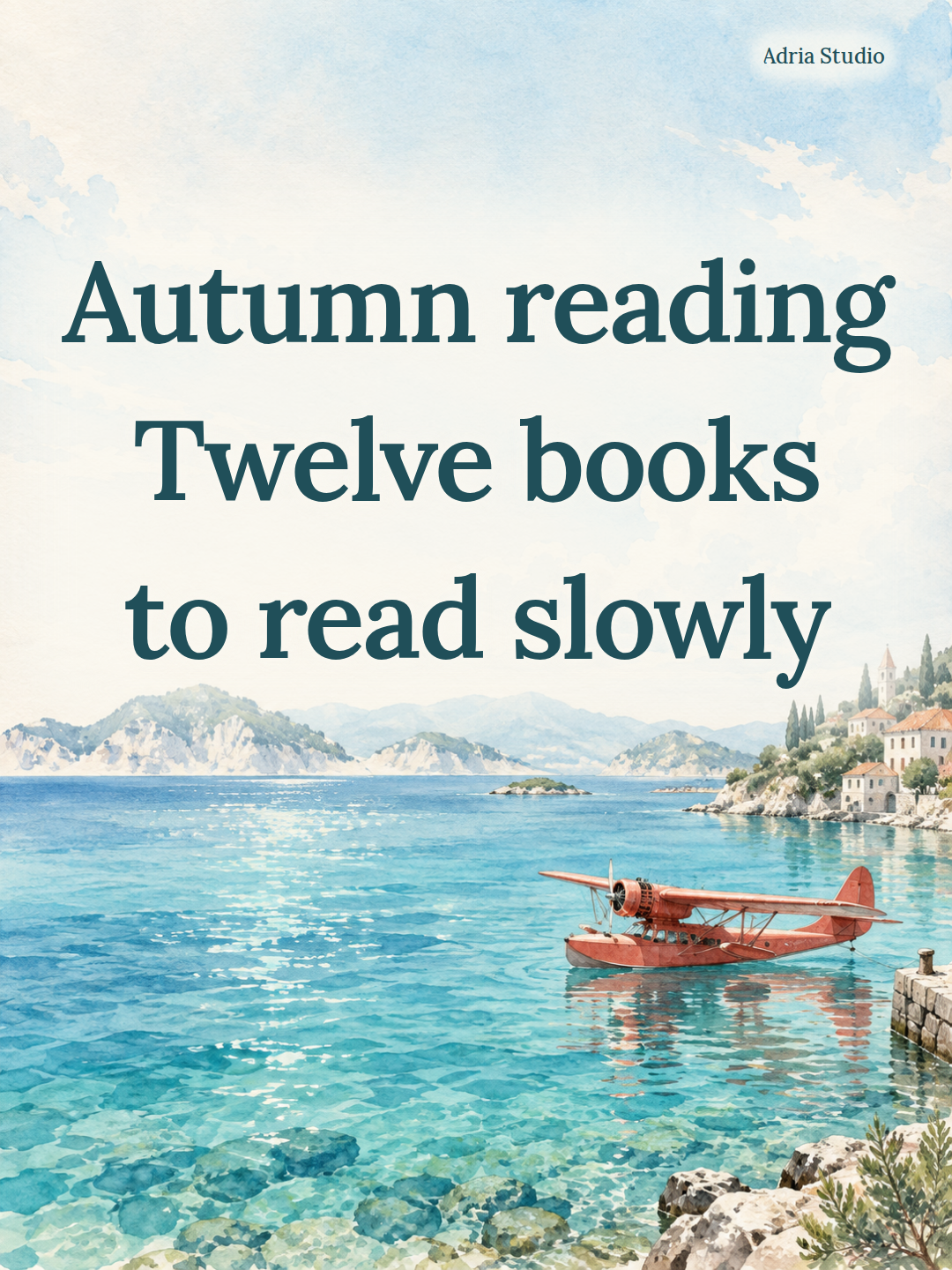
# Autumn reading
# Twelve books
# to read slowly

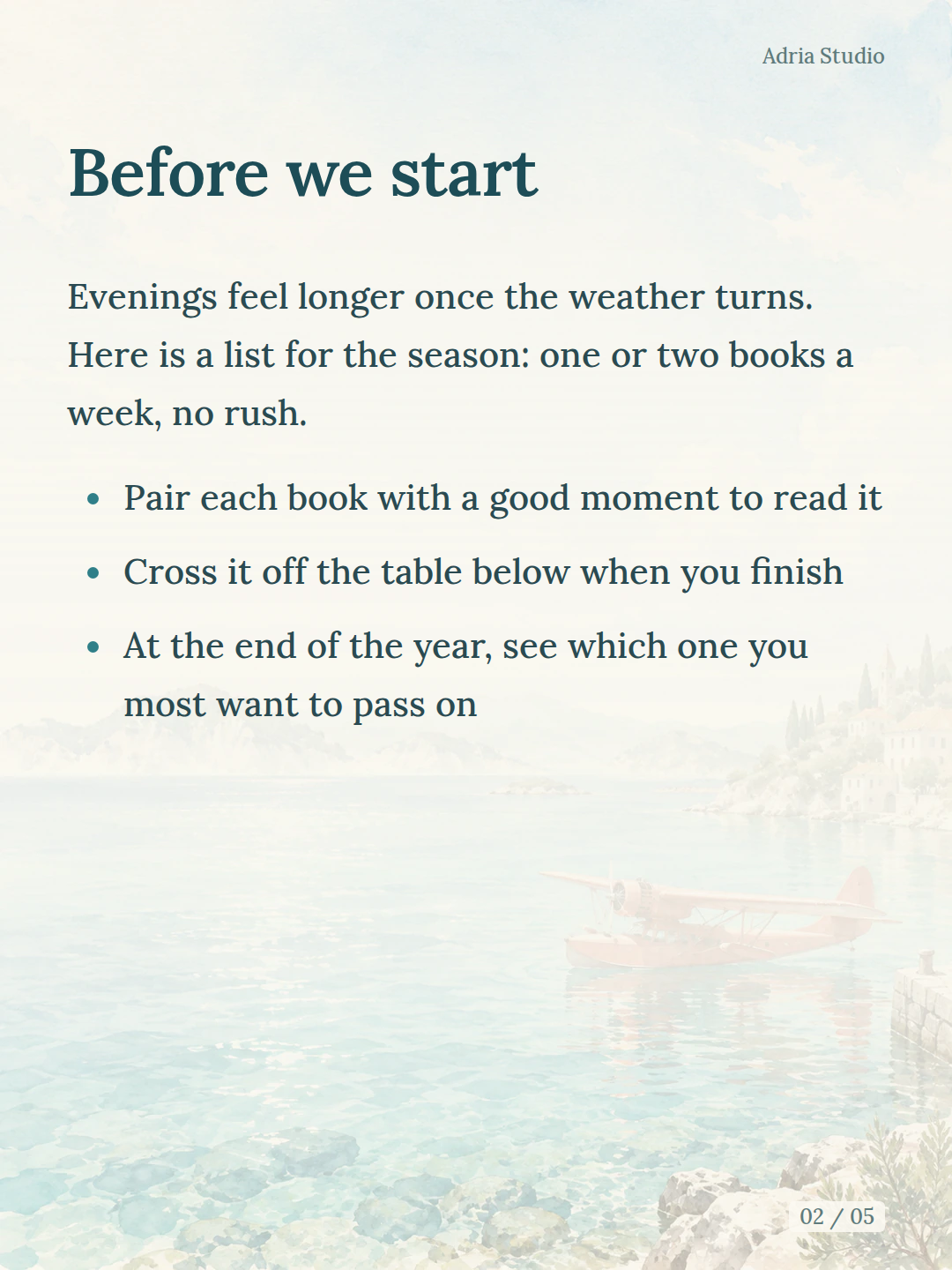
## Before we start

Evenings feel longer once the weather turns. Here is a list for the season: one or two books a week, no rush.
…Bring it into Studio
Open Studio, create a new post, and paste your text or import a .md file.
If your note uses images from your computer, keep the Markdown and the images in one folder. Drag in the whole folder, or zip it first and import the ZIP. Studio follows the image links in your text and brings those images in too. ZIP files from ToMarkdown can be imported as they are.
Images from the web work as long as the link is publicly accessible. After importing, scroll through the preview: if an image could not be found, you will see a note where it should be.
Pick a theme
Studio has 12 themes. Eleven are built around a painting: an Adriatic bay in watercolor, rain on a window, water lilies, the Little Prince on his planet, and more. The twelfth is plain white.
In each theme, the cover painting, the faded background on body pages and the text colors are designed together. Switch themes and the whole set changes mood.
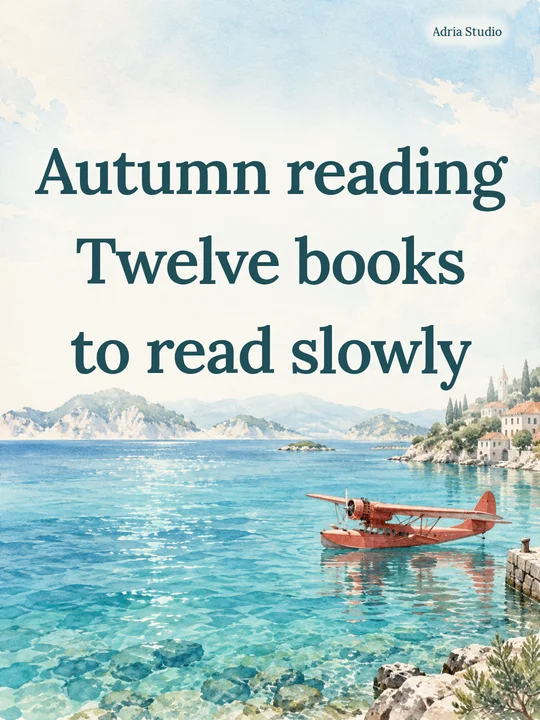
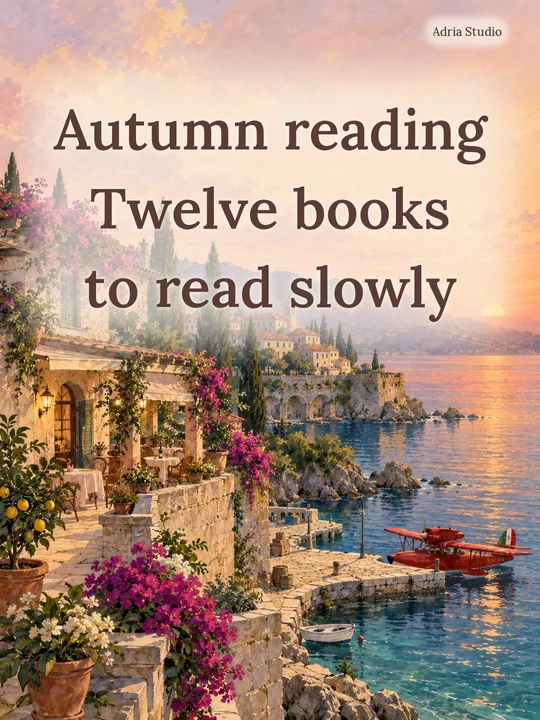
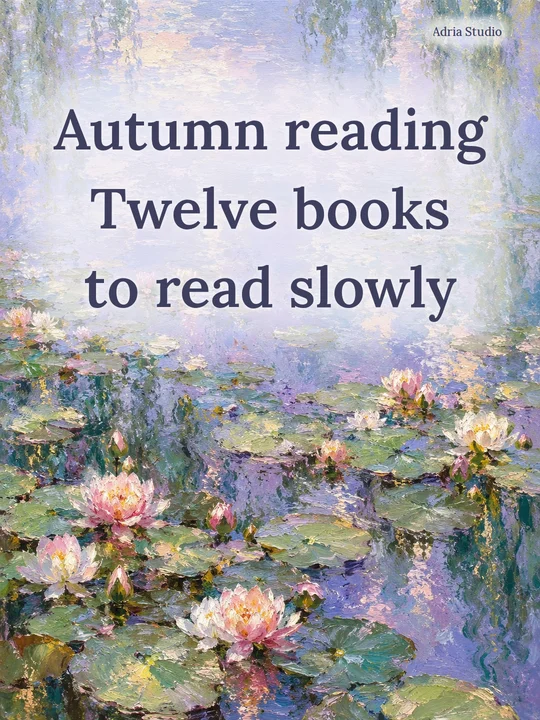
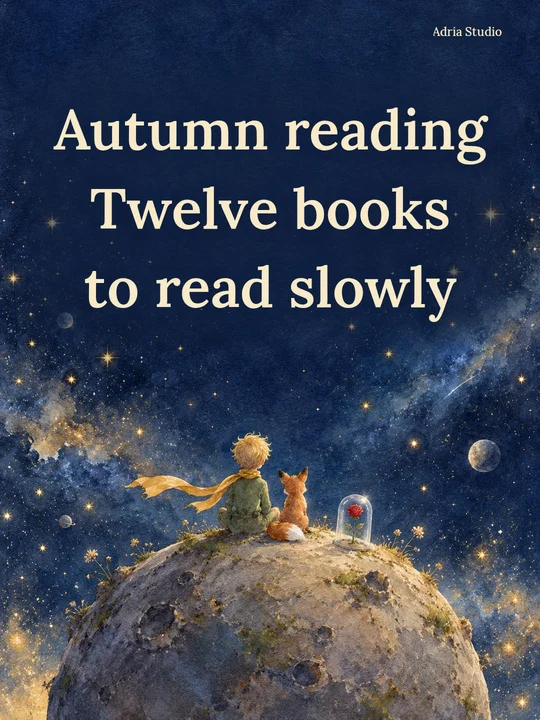
You can adjust the font size, line spacing and signature, and fine-tune the text colors. If things get out of hand, Reset to defaults takes you back.
Long tables continue on the next page
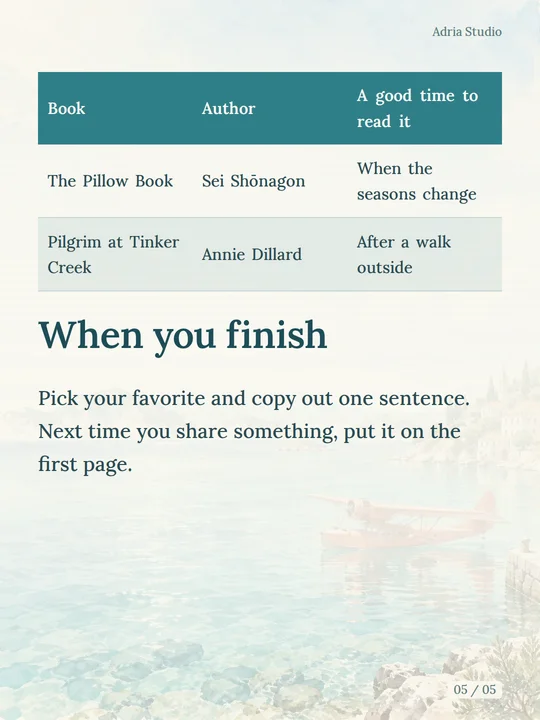
The reading list has a twelve-row table, which is too long for one page. Studio breaks it between rows and carries the rest over to the next page, repeating the header so nobody has to flip back.
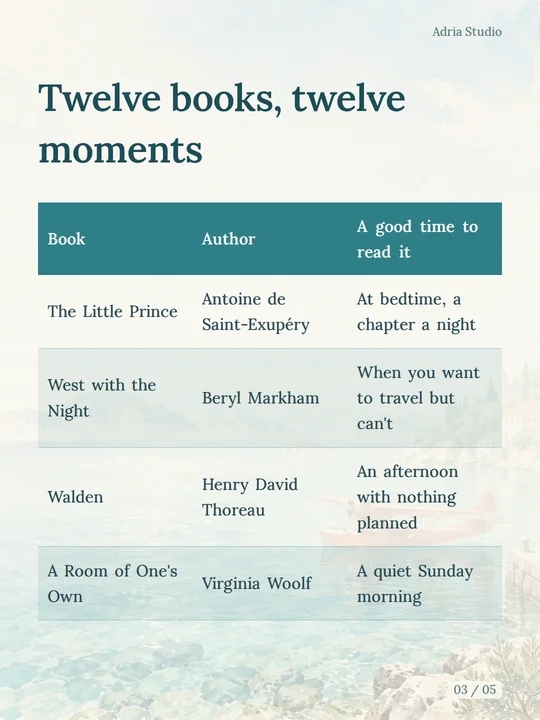
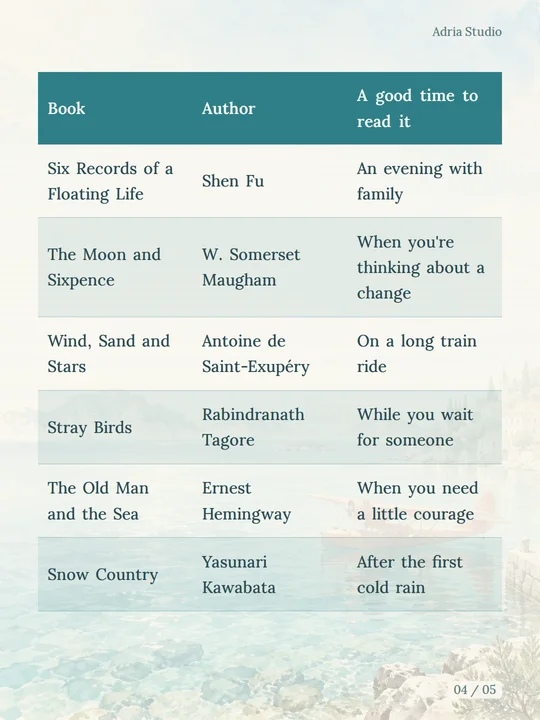
The example puts a page break just before the table so that it starts on a fresh page instead of squeezing two rows in at the bottom of the one before.
If one row has a lot of text, shorten it or make the font a little smaller. Before you export, look through the whole preview and check that every page starts and ends in a sensible place.
Export your images
When you are happy with it, choose Export images. Save the PNGs one at a time, or download the whole set as a ZIP.
Text pages are 1080 × 1440, a 3:4 portrait size that suits carousel posts. A photo on a page of its own keeps its shape and is also 1080 pixels wide. On a phone, the share sheet lets you save the images to your photos.
Besides the images, the ZIP keeps your original Markdown and the pictures it uses, which is handy if you want to edit it later. Once the images are downloaded, where you post them is up to you; Studio never posts on your behalf.
The full example: an autumn reading list
This reading list was written for this guide and laid out by the same engine Studio uses for every export, with no retouching afterwards. Download the source and import it into your own Studio to compare. If you change the font size or the text, the page count may change too.
Show the source
# Autumn reading
# Twelve books
# to read slowly

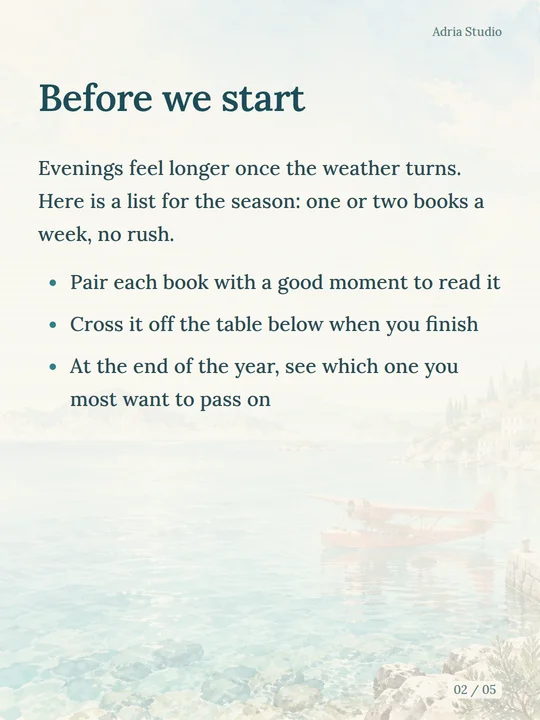
## Before we start

Evenings feel longer once the weather turns. Here is a list for the season: one or two books a week, no rush.

- Pair each book with a good moment to read it
- Cross it off the table below when you finish
- At the end of the year, see which one you most want to pass on

<!-- pagebreak -->

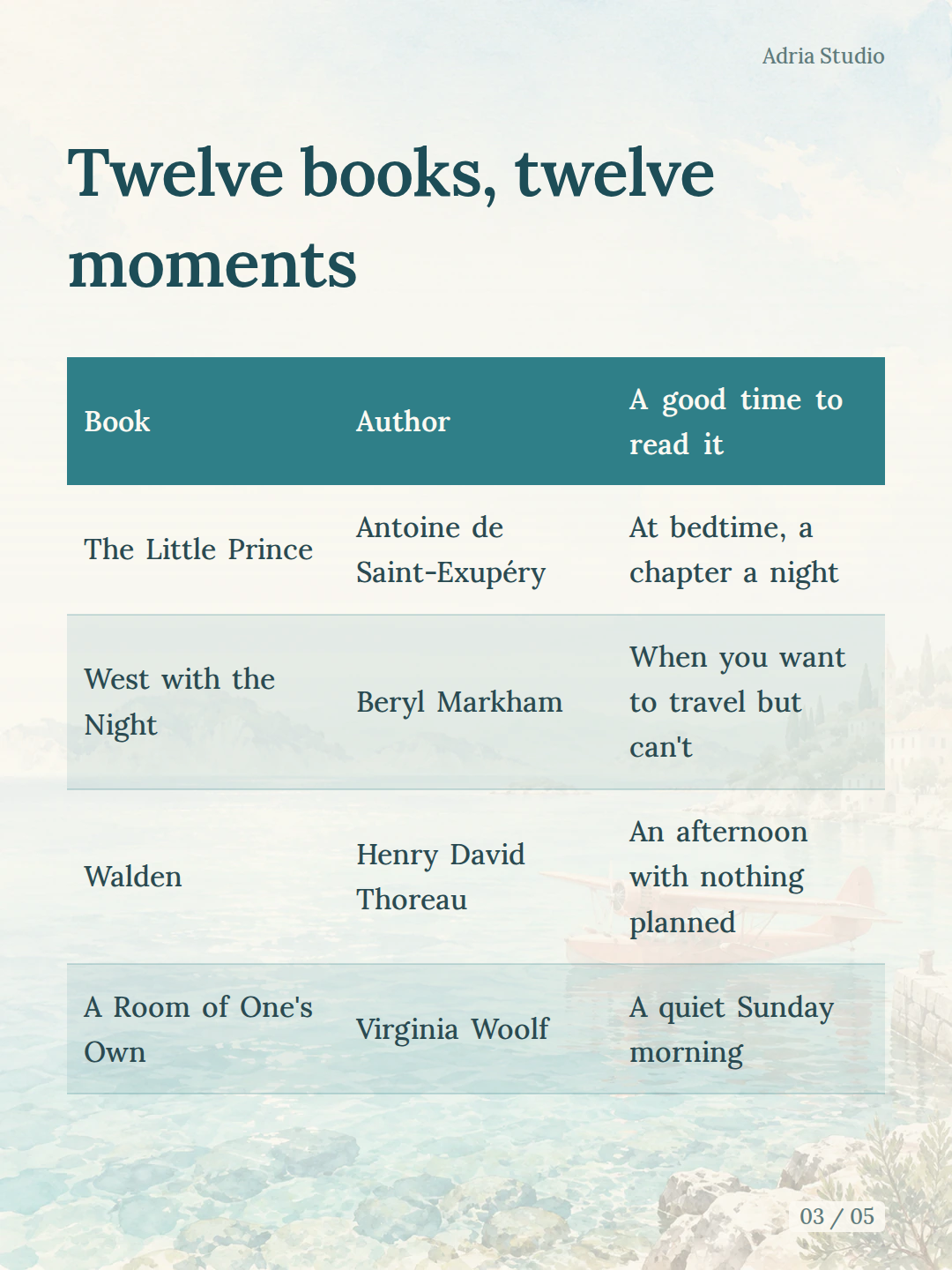
## Twelve books, twelve moments

| Book | Author | A good time to read it |
| --- | --- | --- |
| The Little Prince | Antoine de Saint-Exupéry | At bedtime, a chapter a night |
| West with the Night | Beryl Markham | When you want to travel but can't |
| Walden | Henry David Thoreau | An afternoon with nothing planned |
| A Room of One's Own | Virginia Woolf | A quiet Sunday morning |
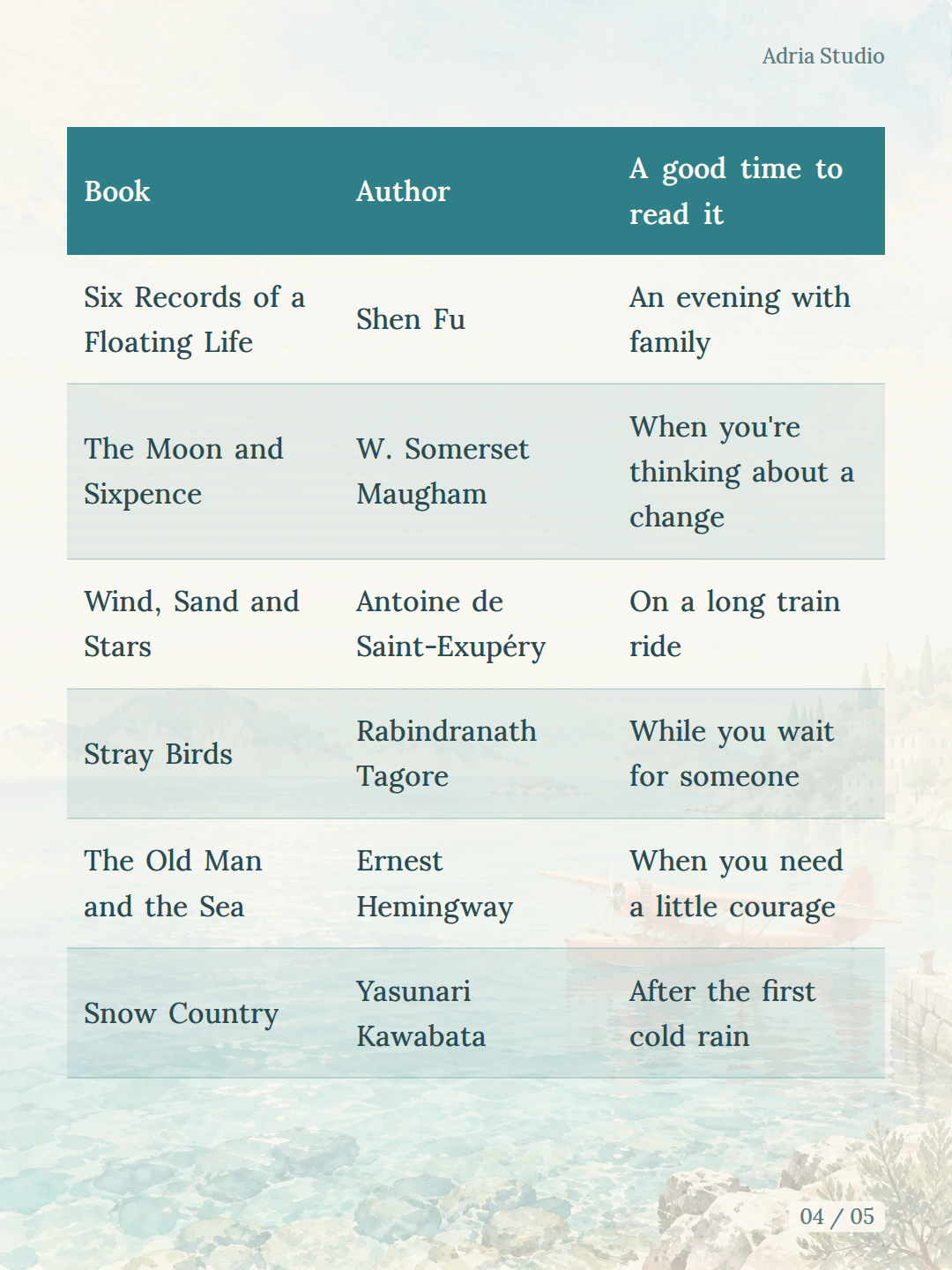
| Six Records of a Floating Life | Shen Fu | An evening with family |
| The Moon and Sixpence | W. Somerset Maugham | When you're thinking about a change |
| Wind, Sand and Stars | Antoine de Saint-Exupéry | On a long train ride |
| Stray Birds | Rabindranath Tagore | While you wait for someone |
| The Old Man and the Sea | Ernest Hemingway | When you need a little courage |
| Snow Country | Yasunari Kawabata | After the first cold rain |
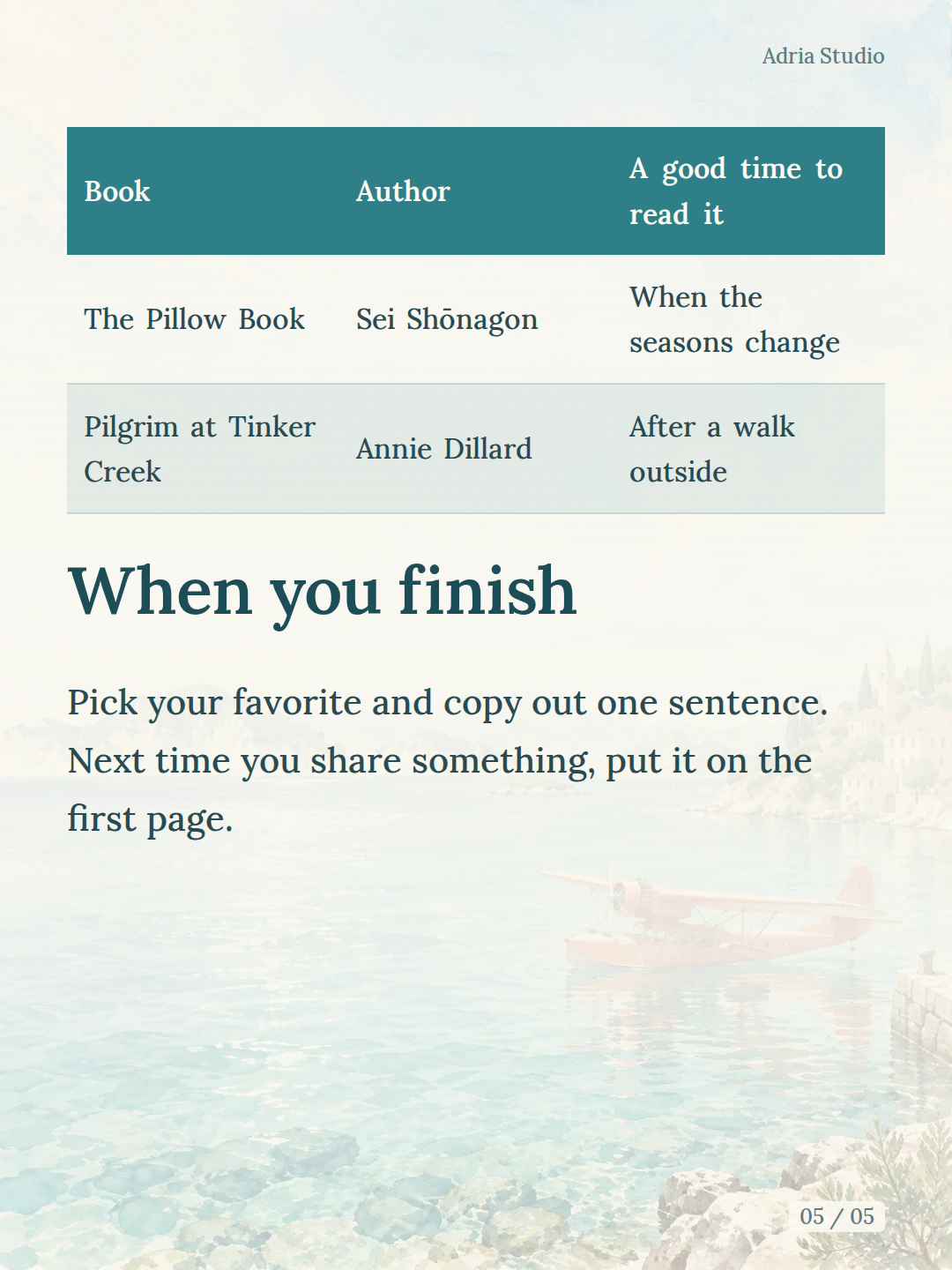
| The Pillow Book | Sei Shōnagon | When the seasons change |
| Pilgrim at Tinker Creek | Annie Dillard | After a walk outside |

## When you finish

Pick your favorite and copy out one sentence. Next time you share something, put it on the first page.
Small questions
Does it cost anything?
It is free right now, with no sign-up. Just open Studio and start.
There is too much text on one page. What can I do?
Add a page break where you want the page to end, or make the font size or line spacing a little smaller. The preview updates as you go.
An image is not showing up.
Check that the image is in the same folder or ZIP as the Markdown, and that the path and file name in your text match it. Images from the web need a public link.
Will AI rewrite my text?
No. Studio only does the layout and uses your words and images exactly as you give them.
Starting from a PDF? Turn it into Markdown with ToMarkdown first, then bring it here to lay it out. Take a look at ToMarkdown →
Try it with your own notes
Get startedFree to use · No sign-up